Use multiple Profiles
A single object can be assigned multiple Profiles. When multiple Profiles define the same attribute, the profile_priority value (lower number = higher priority) determines which Profile's value wins.
Assign multiple Profiles
- Web interface
- GraphQL
- Navigate to the object list for your node kind
- Click Add <Kind> or open an existing object and click Edit
- In the Profile field, select all the Profiles to assign
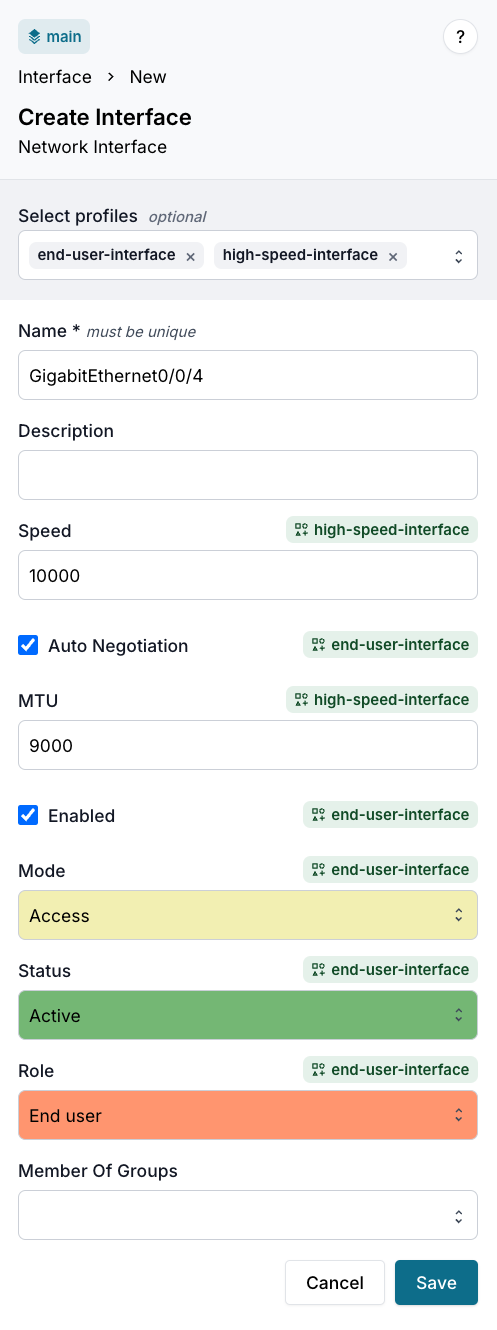
When you select the Profiles, attribute fields are automatically populated. Where Profiles conflict, the highest-priority Profile (lowest profile_priority number) wins.
- Click Save
Add multiple HFIDs to the profiles array:
mutation {
  <Kind>Create(
    data: {
      name: { value: "<object-name>" }
      profiles: [
        { hfid: ["<lower-priority-profile>"] }
        { hfid: ["<higher-priority-profile>"] }
      ]
    }
  ) {
    ok
    object { id }
  }
}
The order in the profiles: array doesn't determine precedence — profile_priority does. A Profile with profile_priority: 500 wins over one with profile_priority: 1000, regardless of array position.
Verify which Profile won for each attribute
- Web interface
- GraphQL
- Open the object
- Click the info icon next to any attribute to see its metadata, including which Profile provided the value
Query each attribute's source field to see which Profile provided its value:
query {
  <Kind>(name__value: "<object-name>") {
    edges {
      node {
        <attribute-1> {
          value
          is_from_profile
          source { hfid display_label }
        }
        <attribute-2> {
          value
          is_from_profile
          source { hfid display_label }
        }
      }
    }
  }
}
For each attribute, source.hfid identifies the winning Profile. Different attributes on the same object can come from different Profiles depending on which Profiles define them and at what priority.
Learn more about combining Profiles in the Common composition patterns section.
Related
- Priority and inheritance — full resolution rules and design rationale
- Override specific Profile values — bypass all Profiles for a specific attribute on a specific object