Event rules
An event rule is a node you create in Infrahub that names a set of conditions and ties one or more actions to fire when those conditions match. Rules turn raw events into useful automation: instead of reacting to every infrahub.node.updated event, you describe the precise update you care about — "an InfraDevice whose status changed to active" — and Infrahub runs your action only when that pattern shows up.
Rules inherit from the CoreTriggerRule generic. Two rule kinds exist because matchable events come from two sources: mutations on specific nodes, and changes to group membership.
| Rule kind | Use it to match | Example |
|---|---|---|
CoreNodeTriggerRule | mutations on specific nodes | An attribute change on InfraDevice, a relationship update on InfraInterface |
CoreGroupTriggerRule | changes to group membership | A member added to provisioning_circuits, a member removed from arista_devices |
Match filters
By default, a rule fires for any event of the configured type. To narrow it down, add match filters. All conditions must be satisfied — match filters use logical AND, not OR.
Attribute matches filter on the new value, the previous value, or both:
- New value — match the attribute's value after the change
- Previous value — match the attribute's value before the change
- Both — match a transition (for example, previous =
inactiveAND new =active)
Relationship matches filter on the modification type and the peer:
- Modification type — added, removed, or modified
- Peer — the node type or specific node instance on the other side of the relationship
Example: to trigger only when a device's status transitions from
inactivetoactive, create an attribute match with previous value =inactiveand new value =active.
Configure a node trigger rule
A node trigger rule fires when a node is created, updated, or deleted.
- Navigate to the Trigger Rules page.
- Click Create and select Node Trigger.
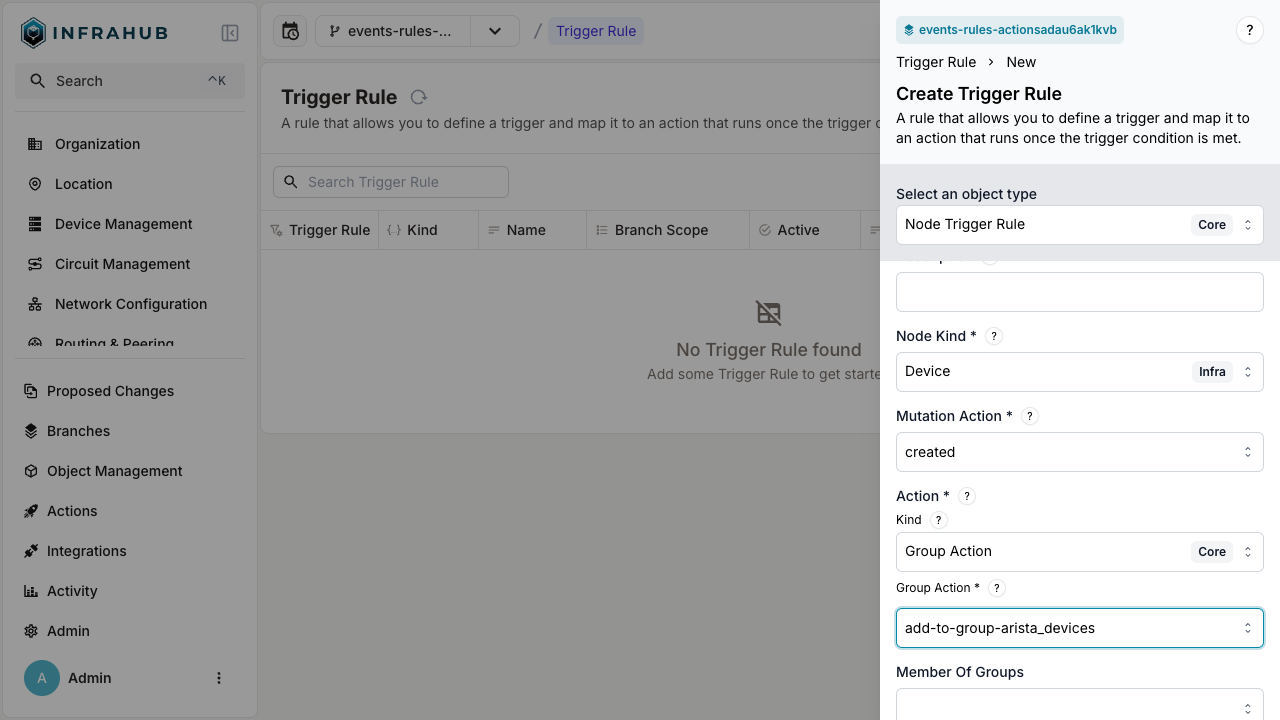
- Configure the rule:
- Enter a name (example:
new-arista-devices) - Select the node kind (example:
Device Infra) - Choose the mutation action (example:
created) - Select the action kind (example:
Group Action Core) - Choose the action that the rule will fire (example:
add-to-group-arista_devices) - Click Save.
- Enter a name (example:
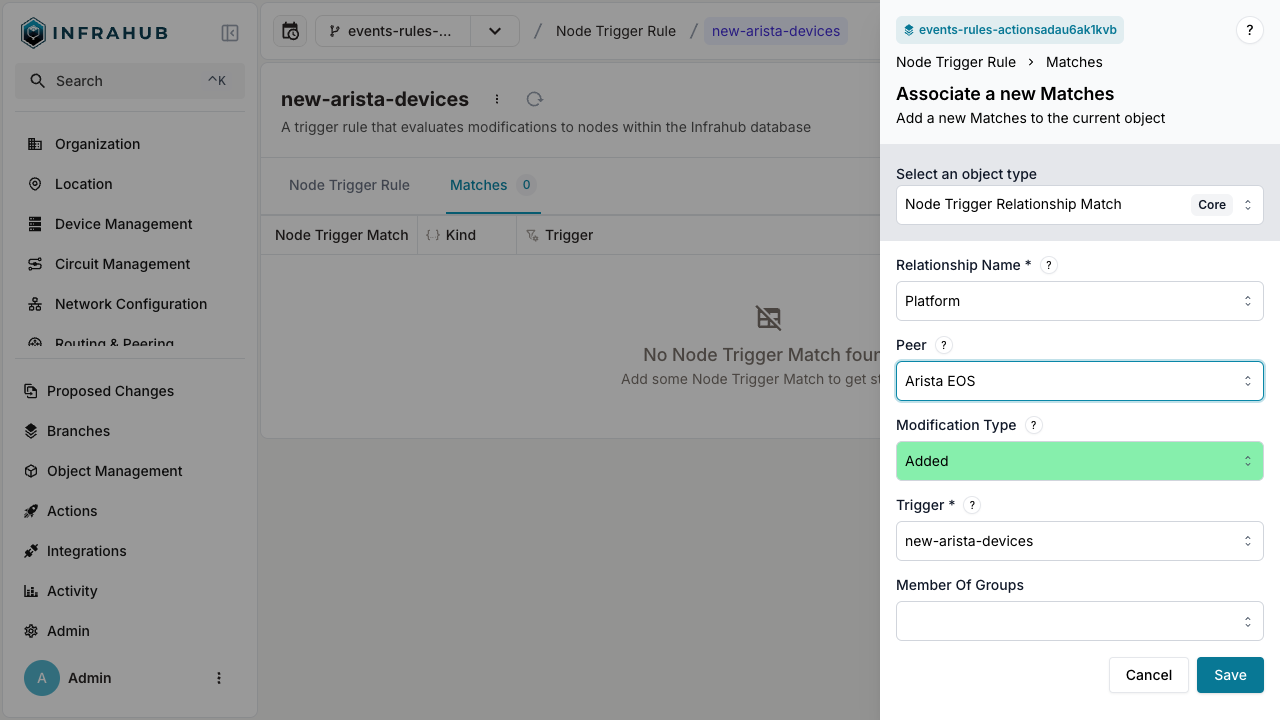
- Add match conditions to refine when the rule fires:
- Open the Matches tab.
- Click Add Match.
- Select Node Trigger Relationship.
- Choose the relationship name (example:
Platform). - Select the peer (example:
Arista EOS). - Click Save.
After saving, the rule appears in the trigger rules list as inactive. Activate it when you're ready to start matching events.
Keep the rule inactive until you've configured all match conditions, then activate it. An active rule starts evaluating events immediately.
Configure a group trigger rule
A group trigger rule fires when a group's membership changes (member added or removed).
- Navigate to the Trigger Rules page.
- Click Create and select Group Trigger.
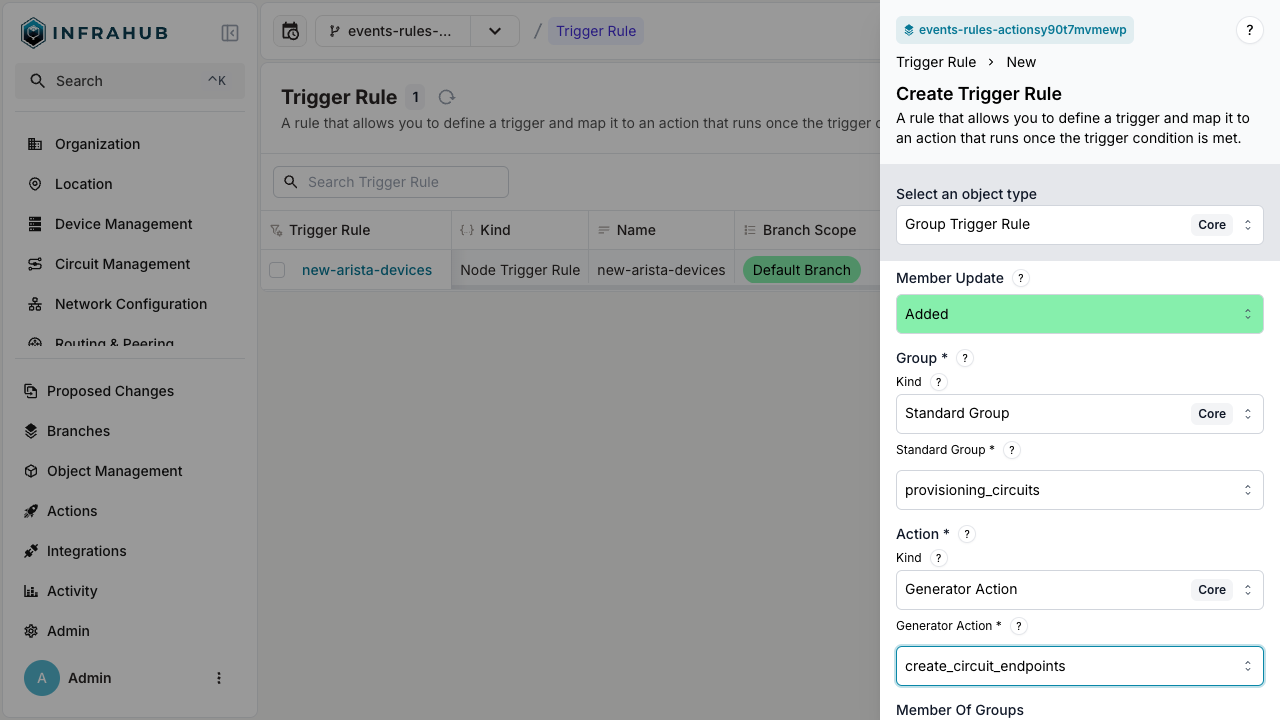
- Configure the rule:
- Enter a name (example:
added-to-provisioning-circuits-group) - Select the kind (example:
Standard Group Core) - Choose the standard group (example:
provisioning_circuits) - Select the action kind (example:
Generator Action Core). A group trigger rule can only fire a Generator action - Choose the Generator action that the rule will fire (example:
create_circuit_endpoints) - Click Save.
- Enter a name (example:
After saving, the rule appears in the trigger rules list as inactive. Activate it when you're ready to start matching events.
To change group membership from an event, use a node trigger rule with a group action.
Where trigger rules are stored and evaluated
Infrahub reads trigger rules from the default branch only. A rule created on another branch does not fire, and you see no error when you create it. Infrahub skips the rule while it reconciles the trigger rules, and the task worker logs a warning, Skipping trigger rule with an unresolved relationship, naming the rule and the relationship it could not resolve.
Create rules on the default branch, together with the groups and Generator definitions they reference, and use branch_scope to control which branches they fire on:
default_branch(the default): the rule fires only for events on the default branch.other_branches: the rule fires only for events on other branches. Use this when the outcome should be reviewed in a proposed change before it reaches the default branch.all_branches: the rule fires everywhere.
Known limitations
- 10463 attaching a group action to a group trigger rule stops Infrahub from applying any trigger rule change until that rule is deleted. Existing rules keep firing, so the failure can go unnoticed.
Related
- Event actions — the outcomes that rules fire
- Event system — what events are and where they come from