Field visibility
Infrahub schemas can declare how attributes and relationships should appear in the frontend, independently of their presence in the data model. These declarations are purely UI hints — they do not affect data access via the API, GraphQL, or forms.
This separates two concerns that are often conflated: what data exists, and what data the interface surfaces by default.
Why this matters
As schemas grow, object views and list views can become cluttered with internal tracking fields, audit metadata, or secondary attributes that aren't relevant for day-to-day operations. Without a way to distinguish primary fields from secondary ones at the schema level, all fields receive equal treatment in the UI, regardless of how often they're actually needed.
Schema-level UI hints let the schema author encode that intent directly, rather than relying on each user to manually navigate around noise. The result is a focused interface for common tasks, with full data still accessible when needed.
This principle — that the schema controls the default user experience, not just data structure — extends to any future capability that shapes how fields are organized or surfaced in the UI.
Visibility: the display property
The display property on attributes and relationships controls whether a field is shown by default, or hidden from the list view and shown in the detail view only after you select Extra.
Values
| Value | Meaning |
|---|---|
default | The field appears in the detail view and in forms, and in the list view when the list view has a column for it. This is the default when display is not specified. |
extra | The field is hidden from list and detail views by default. It is accessible via an Extra toggle in the detail view and still visible in create and edit forms. |
Behavior by view
| View | display: default | display: extra |
|---|---|---|
| List view | Visible when the list view has a column for the field | Hidden |
| Detail view | Visible | Accessible via Extra toggle |
| Create / edit forms | Visible | Visible |
| API / GraphQL | Accessible | Accessible |
The list view has a column only for some kinds of fields, whatever their display value:
- Attributes, except some kinds. For example, attributes of kind
TextArea,JSON,List,Any,PasswordorHashedPasswordhave no column. - Relationships of kind
AttributeorParent, and theparentrelationship of a hierarchical node.
Relationships of kind Generic, which is the default kind, have no list view column. They appear in the detail view.
display: extra changes only the default list and detail views. Users can still:
- View the field in the detail view after they select Extra.
- Set its value in the create and edit forms.
- Read and write it through the API and GraphQL.
To control who can view or change data, use permissions and roles. An object permission applies to a kind of node, such as DcimDevice, not to an individual attribute or relationship.
Example
nodes:
  - name: Device
    namespace: Dcim
    attributes:
      - name: name
        kind: Text
      - name: description
        kind: Text
      - name: internal_tracking_id
        kind: Text
        display: extra          # hidden from list and detail views
    relationships:
      - name: primary_site
        peer: LocationSite
        cardinality: one
      - name: audit_source
        peer: AuditSource
        cardinality: one
        display: extra          # hidden from list and detail views
internal_tracking_id and audit_source are stored and fully accessible via the API but are not shown in the list or detail view by default.
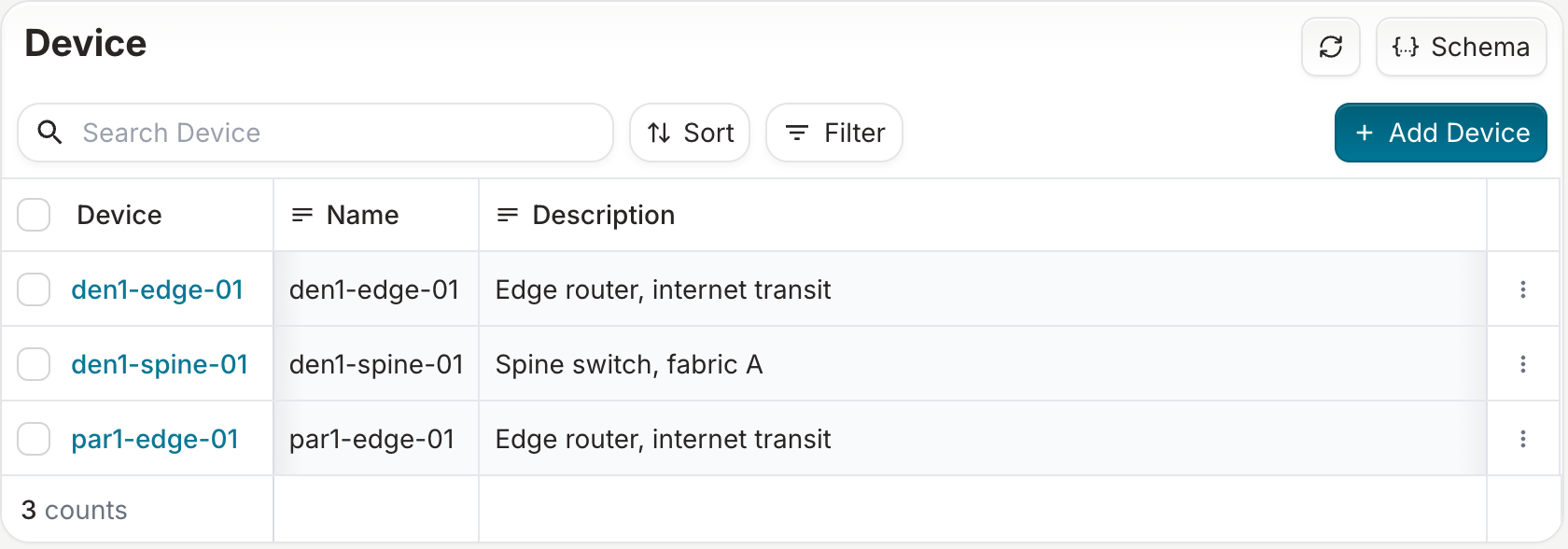
With this schema, the list view of devices has Name and Description columns, but no Internal Tracking Id column. Primary Site has no column either, because it is a relationship of kind Generic:
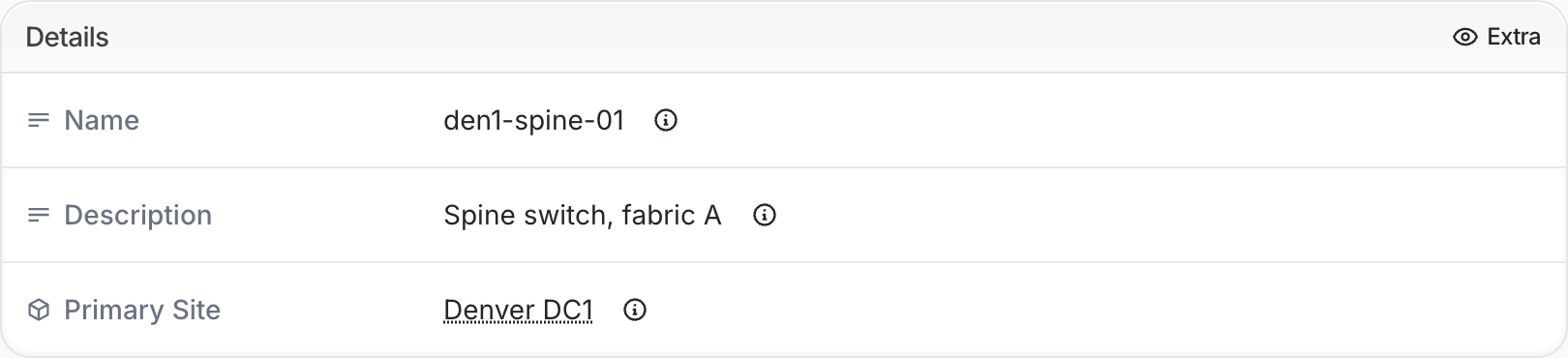
The Details card of a device shows Name, Description and Primary Site. The Extra toggle appears in the card header because the schema has fields set to display: extra:
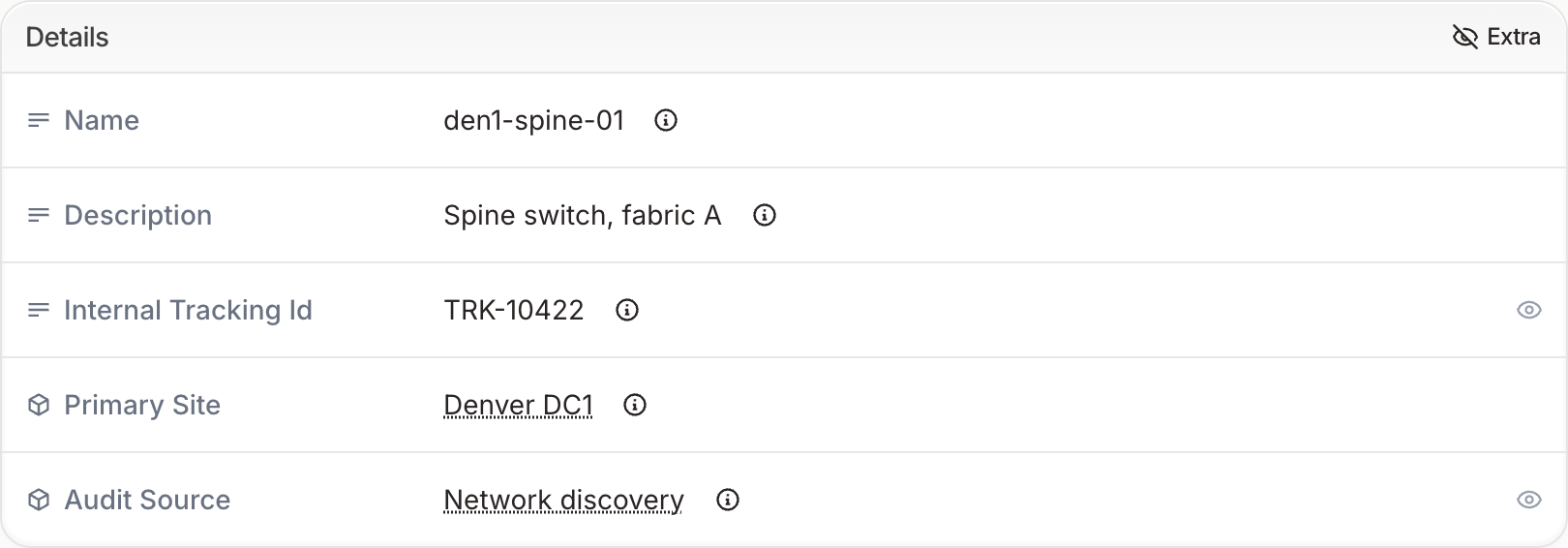
Select Extra to show Internal Tracking Id and Audit Source. An eye icon at the end of a row marks each field set to display: extra:
Cardinality-many relationships
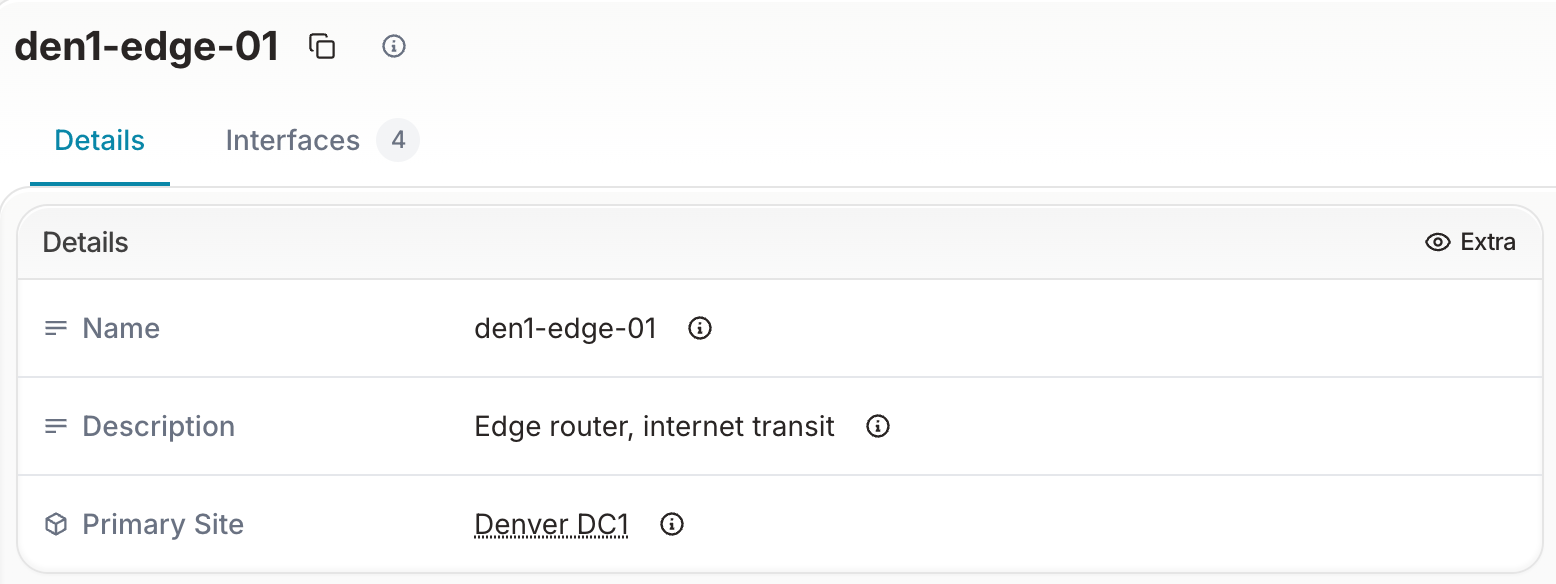
A relationship with cardinality: many and kind Generic, Component or Hierarchy has its own tab in the detail view, with the number of peers next to the tab name. It has no row in the Details card. The display property has no effect on these relationships: their tabs are always shown, whatever the display value.
For example, add an interfaces relationship to the device from the example above. The detail view of a device has an Interfaces tab, even with display: extra:
nodes:
  - name: Device
    namespace: Dcim
    relationships:
      - name: interfaces
        peer: DcimInterface
        kind: Component
        cardinality: many
        display: extra          # no effect: the Interfaces tab is always shown
The children relationship of a hierarchical node is a relationship of kind Hierarchy with cardinality: many, so it also has its own tab.
A relationship of kind Attribute with cardinality: many has no tab. It appears as a row in the Details card, and display: extra hides it like any other field.
Interaction with other schema properties
order_weight: Controls the position of fields within a view. Fields set todisplay: extrakeep their order weight: after you select Extra, they appear among the other fields in order weight order, not in a separate section.read_only: Marks a field as non-editable. Can be combined withdisplay: extrafor fields that should rarely be visible and never modified by users.optional: Determines whether a value is required. Settingdisplay: extraon a required field means users must still provide a value in forms, even though the field is hidden in other views.
Related concepts
- Order weight — Controls field ordering within views
- Labels — Controls how fields and nodes are named in the UI
- Permissions and roles — Controls who can read and write data
- Schema reference — Full attribute property reference